

Managing Your Wallets on Bento
Bento lets you manage multiple wallets in one place, which can help you easily and comprehensively understand your entire crypto portfolio.
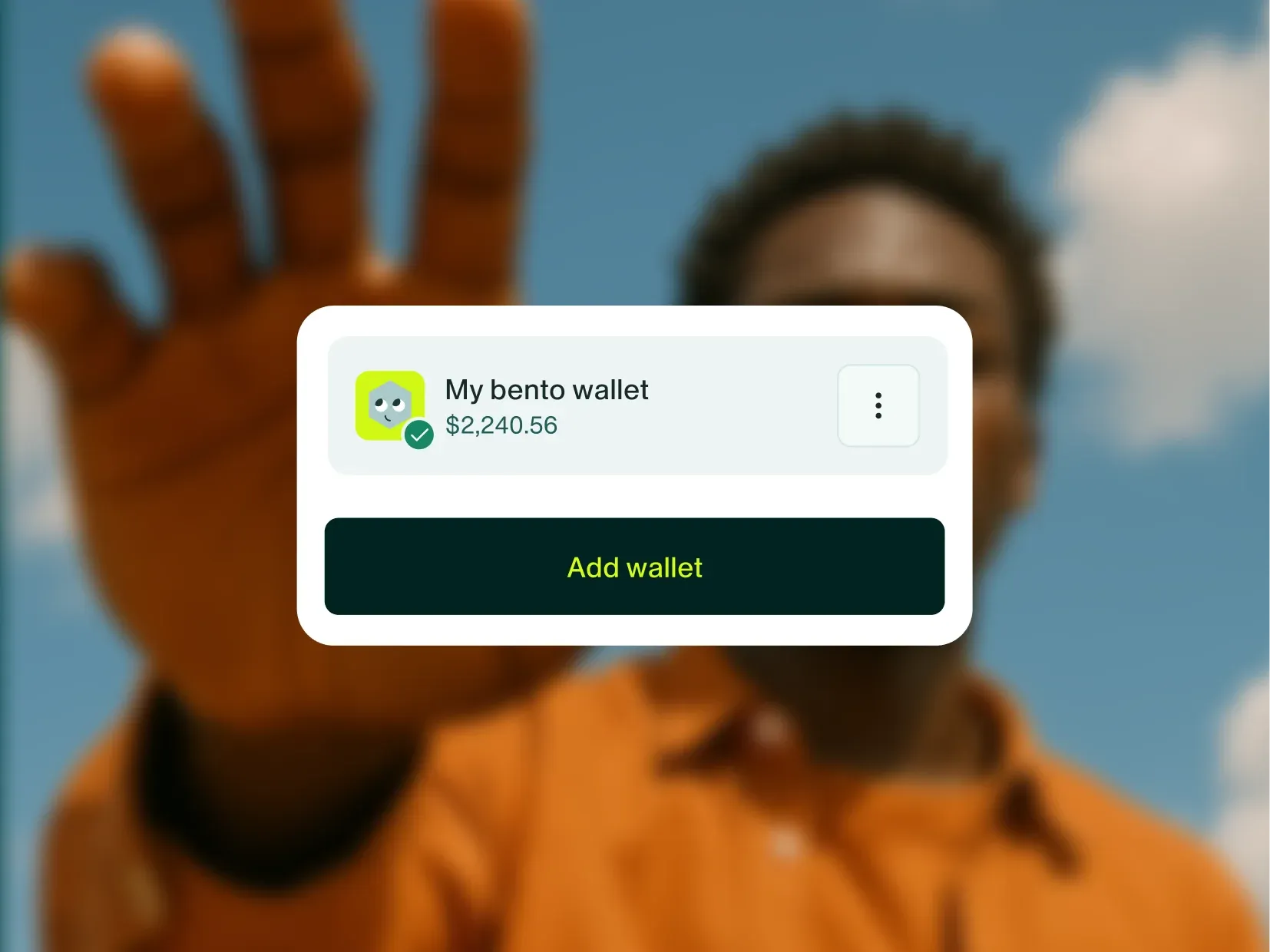
Bento lets you manage multiple wallets in one place, which can help you easily and comprehensively understand your entire crypto portfolio. This guide covers how to add, organize, and keep track of your accounts.
Adding Multiple Wallets
You might want separate wallets for different purposes, such as one for everyday transactions, another for long-term holdings, and another for testing.
To add a wallet:
- Tap the wallet icon at the top of the screen.
- Tap Add Wallet.
- Choose to create a new wallet or import an existing one.
- Follow the setup steps.
Important: Each wallet has its own recovery phrase or private key. Make sure you back up each one separately.
Switching Between Wallets
Your active wallet is shown at the top of the dashboard.
To switch wallets:
- Tap the wallet name at the top of the screen.
- Select the wallet you want to use.
Your balances, activity, and transaction history will update to reflect the selected wallet.
Removing a Wallet
If you no longer need a wallet in Bento, you can remove it from the app. This doesn't delete your funds; it just removes the wallet from your device.
To remove a wallet:
- Open the wallet manager.
- Tap the three-dot menu next to the wallet you want to remove.
- Tap Remove Wallet.
- Confirm that you've backed up your recovery phrase.
Important: Once removed, the only way to access that wallet again is by importing it with your recovery phrase or private key.
Adding Contacts
Sending crypto to the same addresses regularly? Save them as contacts so you don't have to copy and paste every time.
To add a contact:
- Go to Settings > Contacts.
- Tap Add Contact.
- Enter a name and wallet address.
- Save.
When sending crypto, you can select from your saved contacts instead of entering an address manually.
Important: Double-check addresses before saving, as transactions cannot be reversed.
Viewing Transaction History
Every transaction you send or receive is logged in your activity feed.
To view your history:
- Tap Activity in the bottom navigation.
- Scroll through your transactions.
- Tap any transaction for details.
You'll see the amount, recipient or sender, network, fees, and status. For completed transactions, you can also tap through to view them on a block explorer.
Note: If your activity feed is empty, it means you haven't made any transactions yet with the selected wallet.
Staying Organized
A few tips for managing multiple wallets:
- Name your wallets clearly. "Main," "Savings," and "DeFi" are just some ideas. Choose whatever helps you remember what each one is for.
- Back up each wallet separately. Remember that there is one recovery phrase per wallet. Don't mix them up.
- Review your contacts periodically. Remove addresses you no longer use to keep things clean.
The more organized you are now, the easier things will be later.
Please note that these investment products carry risk, these include regulatory challenges, potential technological vulnerabilities, liquidity risks and market uncertainties. Careful planning and robust risk management are essential to fully realise the advantages of tokenisation while mitigating its potential downsides.